# Project Setup for XR
{% tabs %}
{% tab title="Tutorial" %}
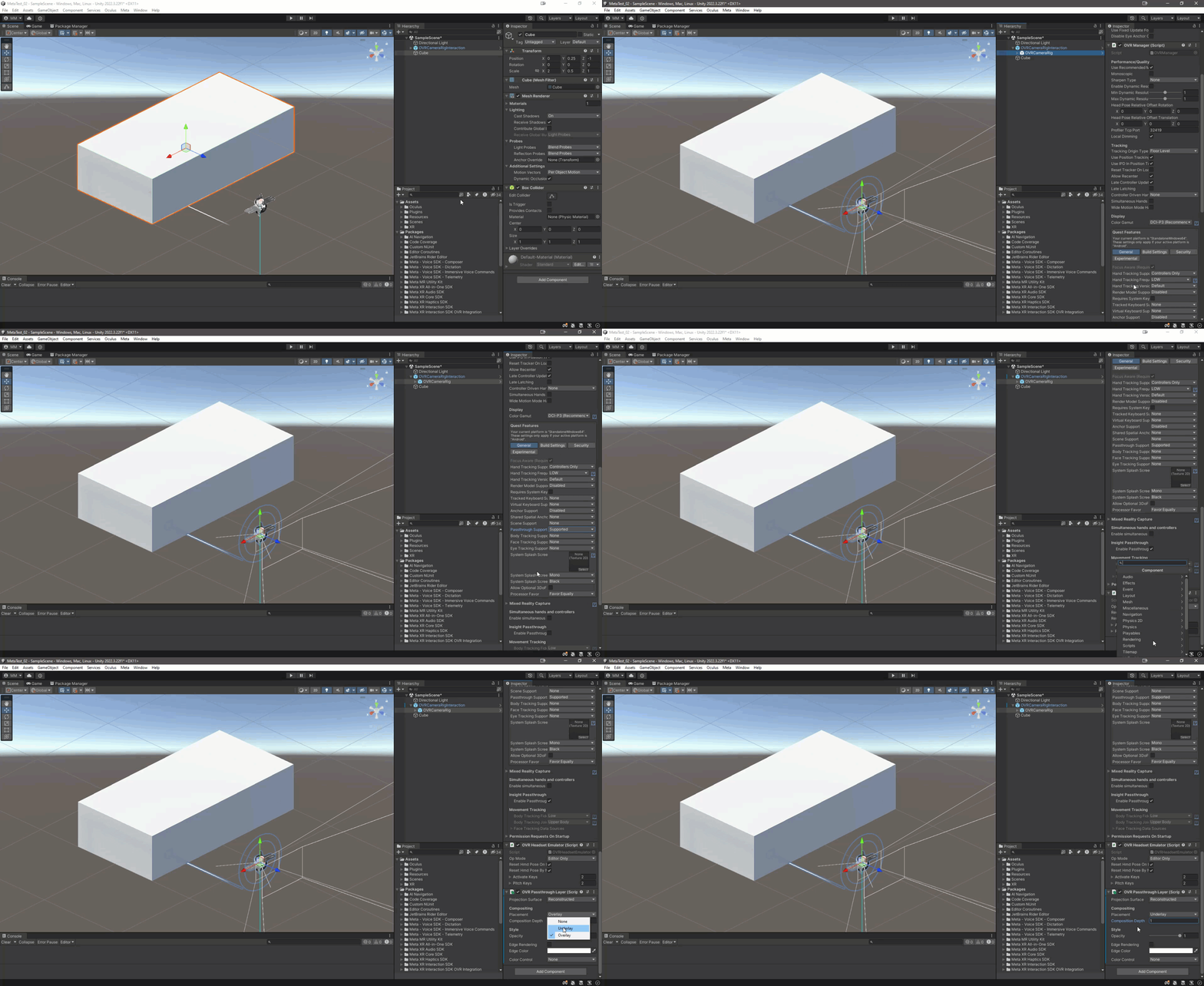
For mixed reality to work we need to be able to see the environment around the headset. For passthrough to work we need to add a couple more elements within the project.
Don't forget to enable Passthrough to work using Quest Link (if you aren't using a cable).
Setup Passthough on OVRCameraRig...
* Select the OVRCameraRig.
* This may be a child of the 'OVRCameraRigInteraction' asset.
* Set 'Passthrough Support' to 'Supported' or 'Required' under the General tab.
* Enable 'Enable Passthrough' under 'Insight Passthrough'.
* Add a 'PassthroughOVRLayer' component to the OVRCameraRig asset.
* Set the Placement to 'Underlay' if you want the passthrough to be behind everything.
* Set the Composition Depth to 1.
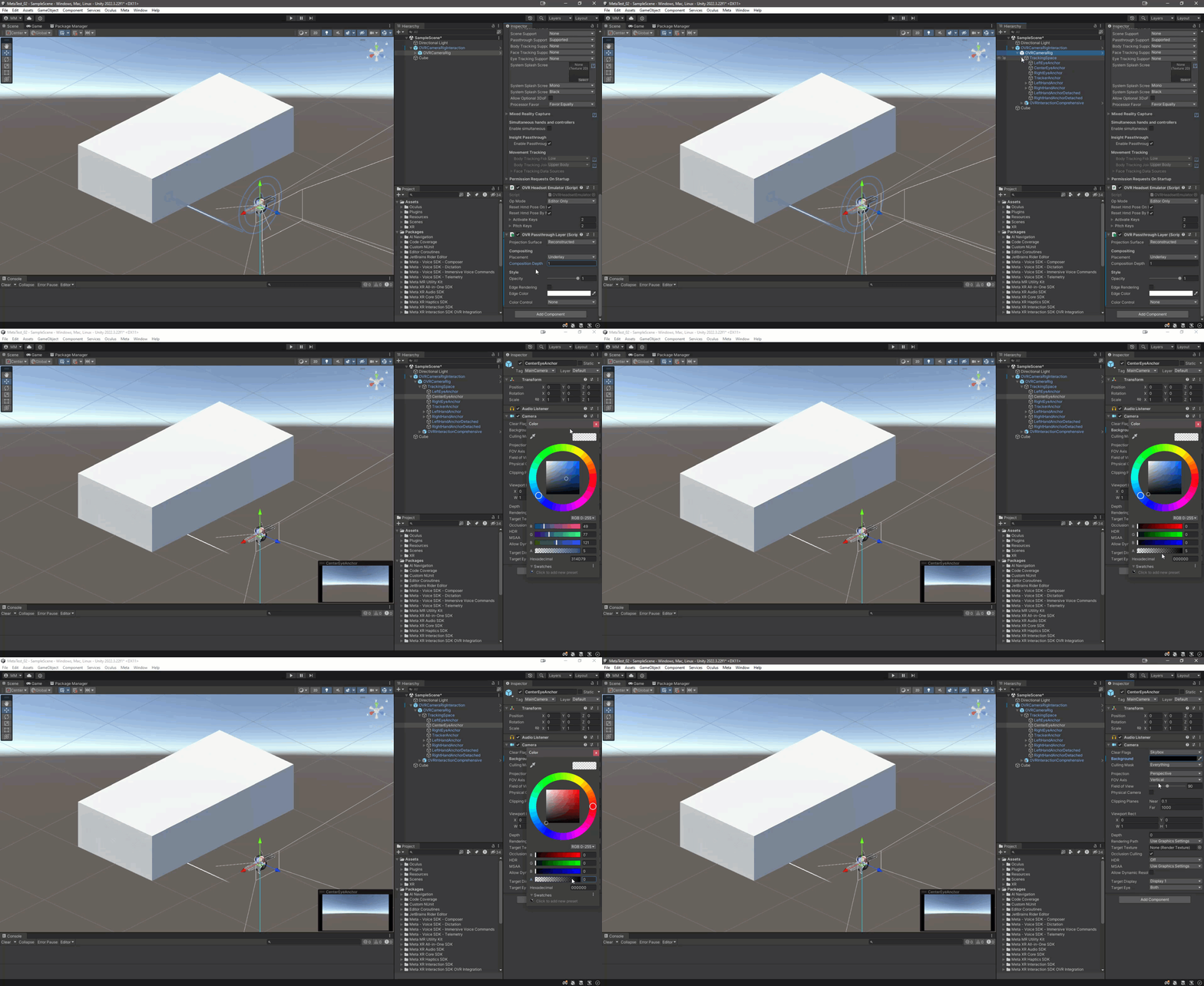
Adjust Alpha and Color on CenterEyeAnchor...
* Select the 'CenterEyeAnchor' asset under 'CameraOVRRig / TrackingSpace'.
* Set the Background color to Black with Alpha at 0.
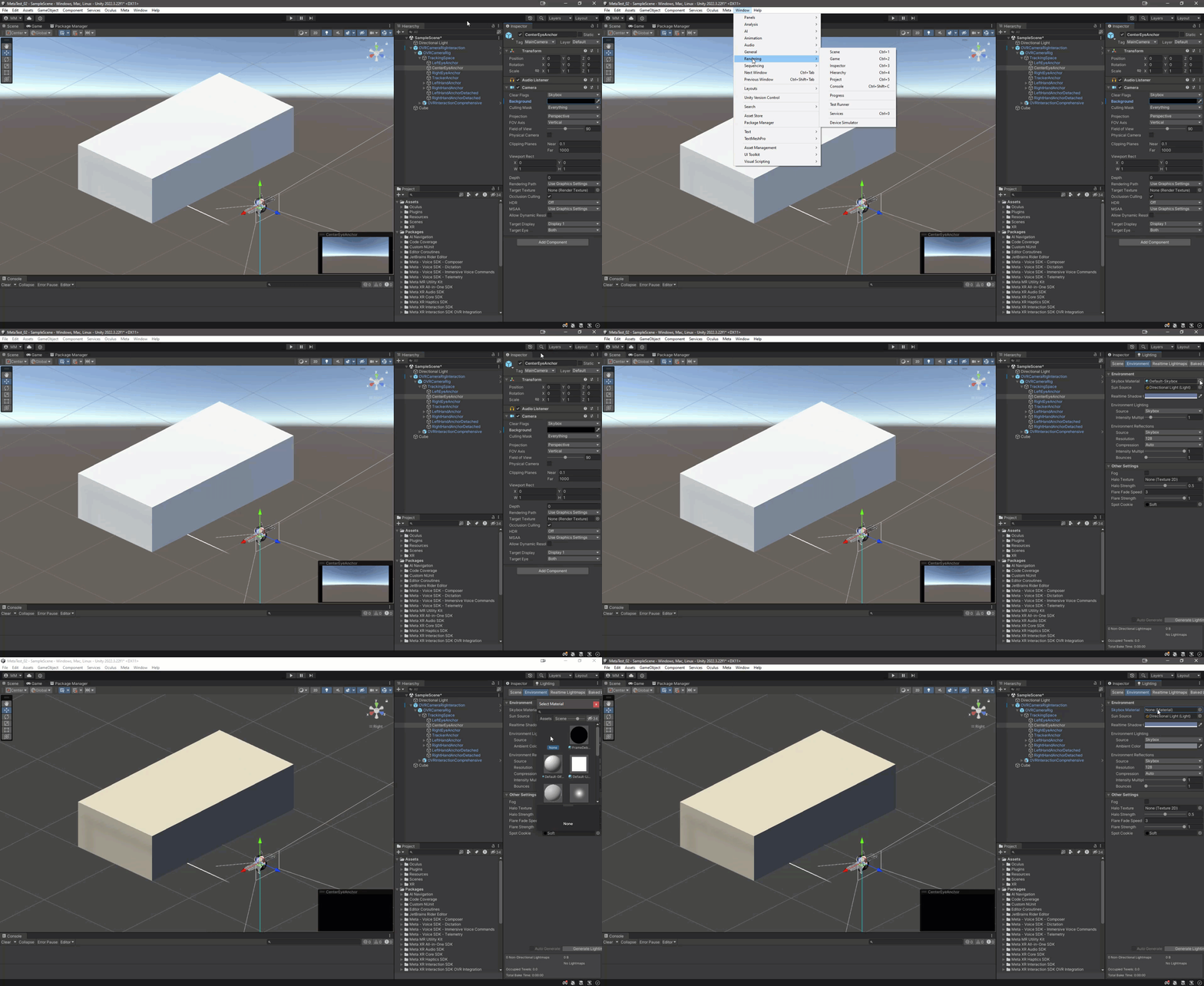
Remove Default Skybox on Lighting window / Environment...
* Select the 'Lighting Window / Environment'.
* Set the 'Skybox' to 'None'.
{% endtab %}
{% tab title="Troubleshooting" %}
### Passthrough doesn't work!
If you are using the Quest Link to test your project, make sure that you have enabled with the following :
* Go to the Oculus Desktop App (v37.0 or later).
* Go to the Settings > Beta section.
* Enable 'Developer Runtime features'.
* Enable 'Passthrough over Meta Quest Link'.
### Passthrough Issues
#### Passthrough doesn't work at all
* Select the OVRCameraRig.
* This may be a child of the 'OVRCameraRigInteraction' asset.
* Set 'Passthrough Support' to 'Supported' or 'Required' under the General tab.
* Enable 'Enable Passthrough' under 'Insight Passthrough'.
* Add a 'PassthroughOVRLayer' component to the OVRCameraRig asset.
* Set the Placement to 'Underlay' if you want the passthrough to be behind everything.
* Set the Composition Depth to 1.
#### Passthrough shows a Blue Environment
* Select the 'CenterEyeAnchor' asset under 'CameraOVRRig / TrackingSpace'.
* Set the Background color to Black with Alpha at 0.
#### Passthrough shows the Default Skybox
* Select the 'Lighting Window / Environment'.
* Set the 'Skybox' to 'None'.
### Camera Issues
#### The experience is black...
Make sure to enable the OVRCameraRig or OVRCameraRigInteraction assets if you disable them while building the experience.
### Meta XR Errors / Warnings
#### 'The Oculus Integration Package (v63) and Meta Simulator Package (v62) must match to ensure correct functionality'
This issue may not break your experience. This is due to error differences in the packages that Meta will no doubt align at some point. You may want to try and find the previous versions of the All-in-one SDK, or wait until the Simulator package gets updated.
{% endtab %}
{% endtabs %}