# Breaking the Avatar

{% tabs %}
{% tab title="Tutorial" %}
As a standard Roblox Character requires many parts we will need to break the model up into segments like the upper arms/legs, lower arms/legs etc.&#x20;

Blender will keep the rigging information on the vertices even after you split up the assets.&#x20;

<figure><img src="https://1511627699-files.gitbook.io/~/files/v0/b/gitbook-x-prod.appspot.com/o/spaces%2FwBY0yo2lTxFMvwpoAeN8%2Fuploads%2FFNbw5DJGJmIbhDyZNkxZ%2Fimage.png?alt=media&#x26;token=dba3b3a2-f1a1-40a9-92f2-fca39cd11a95" alt=""><figcaption><p>Break up the Duplicate and name accordingly...</p></figcaption></figure>

* Duplicate the character. We can use the original asset to help make our split avatar asset normals more unified.

<figure><img src="https://1511627699-files.gitbook.io/~/files/v0/b/gitbook-x-prod.appspot.com/o/spaces%2FwBY0yo2lTxFMvwpoAeN8%2Fuploads%2FH7A96yi0dlhIEu2U26C9%2Fimage.png?alt=media&#x26;token=3022f0e5-e021-428f-86a9-63bfb9db686a" alt=""><figcaption><p>Required Assets...</p></figcaption></figure>

* Break up the duplicate character into the respective parts by :&#x20;
  * Select the target polygons.
  * Right Click > Separate > Selection.
  * Name them (in white below) :&#x20;
    * <mark style="color:green;">Head (including Neck)</mark>
      * *Head\_Geo*
      * *LeftEye\_Geo*
      * *RightEye\_Geo*
      * *Tongue\_Geo*
      * *UpperTeeth\_Geo*
      * *LowerTeeth\_Geo*
    * <mark style="color:green;">Torso (including Pelvis)</mark>
      * *UpperTorso\_Geo*
      * *LowerTorso\_Geo*
    * <mark style="color:green;">Upper Arms</mark>
      * *LeftUpperArm\_Geo*
      * *RightUpperArm\_Geo*
    * <mark style="color:green;">Lower Arms</mark>
      * *LeftLowerArm\_Geo*
      * *RightLowerArm\_Geo*
    * <mark style="color:green;">Hands</mark>
      * *LeftHand\_Geo*
      * *RightHand\_Geo*
    * <mark style="color:green;">Upper Legs</mark>
      * *LeftUpperLeg\_Geo*
      * *RightUpperLeg\_Geo*
    * <mark style="color:green;">Lower Legs</mark>
      * *LeftLowerLeg\_Geo*
      * *RightLowerLeg\_Geo*
    * <mark style="color:green;">Feet</mark>
      * *LeftFoot\_Geo*
      * *RightFoot\_Geo*

<figure><img src="https://1511627699-files.gitbook.io/~/files/v0/b/gitbook-x-prod.appspot.com/o/spaces%2FwBY0yo2lTxFMvwpoAeN8%2Fuploads%2FI8VcBKQ4nQLr4CyZN9DN%2FCapEnds.gif?alt=media&#x26;token=211a671f-28fe-40db-8740-492405a9ccae" alt=""><figcaption><p>Cap ends of all assets...</p></figcaption></figure>

* Cap the parts so they are all closed assets. This includes things like the eyes if you have removed half the sphere to reduce polycount.
  * Select the edges of the hole.
  * Use the 'F' Key to create a Face from Vertices.
  * Right Click > Mark Sharp if you want the edge to be sharp.

## Refining the results

<figure><img src="https://1511627699-files.gitbook.io/~/files/v0/b/gitbook-x-prod.appspot.com/o/spaces%2FwBY0yo2lTxFMvwpoAeN8%2Fuploads%2FNQl6g0UkjvgYewGPlbpO%2Fimage.png?alt=media&#x26;token=dda0ceb5-87bc-462e-b0f0-18970b27eb62" alt=""><figcaption><p>Refining the Normals...</p></figcaption></figure>

* If you want the assets to look like they blend together rather than have an edge as they are different meshes there are different approaches to do so : <br>

  <figure><img src="https://1511627699-files.gitbook.io/~/files/v0/b/gitbook-x-prod.appspot.com/o/spaces%2FwBY0yo2lTxFMvwpoAeN8%2Fuploads%2FstbAl8fKdZoTOx1i7omo%2Fimage.png?alt=media&#x26;token=34d0e679-1fdb-4716-8e29-8d084cd2e679" alt=""><figcaption><p>Data Transfer Modifier...</p></figcaption></figure>

  * Use the 'Data Transfer' modifier to copy data from your original asset onto your split model assets, or...
  * In Edit Mode on the mesh, use 'Mesh/Normals/Copy Vector' and 'Mesh/Normals/Paste Vector' to copy the normal from one vertex to another.
* Make sure to Apply the Transform (Ctrl + A in Object Mode in Blender) to all meshes before export so that :&#x20;
  * Location is 0,0,0.
  * Rotation is 0,0,0.
  * Scale is 1.0, 1.0, 1.0
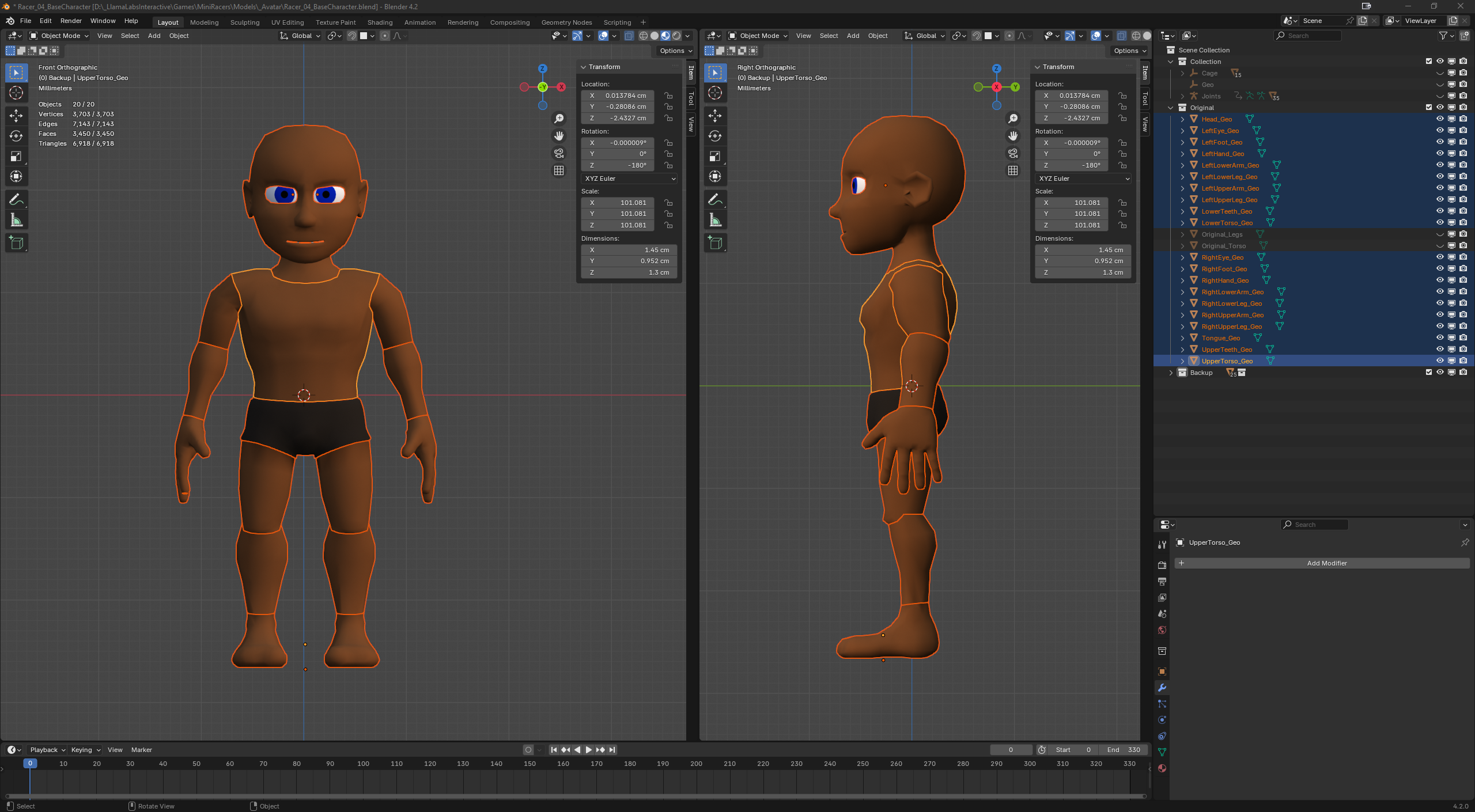
<figure><img src="https://1511627699-files.gitbook.io/~/files/v0/b/gitbook-x-prod.appspot.com/o/spaces%2FwBY0yo2lTxFMvwpoAeN8%2Fuploads%2F9lyxRZc8pOyyNbkDBepE%2Fimage.png?alt=media&#x26;token=1e2e1b6e-524e-4f21-80b8-2f9b09f52fff" alt=""><figcaption><p>Example of Applied Transforms...</p></figcaption></figure>
{% endtab %}

{% tab title="Troubleshooting" %}

##

{% endtab %}
{% endtabs %}
